Onboard environments.
A Portainer server without environments is an empty console. This module walks every way to attach one, from the trivial (a Docker host in the same VPC) to the significant (a Talos-based cluster provisioned through Sidero Omni, then an edge fleet added over the reverse tunnel and command queue). By the end you should be able to choose the right onboarding path for any environment shape you encounter.
The environment abstraction
An environment in Portainer is a managed target: a Docker host, a Swarm cluster, a Kubernetes cluster, a Podman host, an edge device, or a fleet of them. The Management Server holds one representation per environment; every other piece of Portainer (RBAC, policies, GitOps, alerting, add-ons) operates against environments as first-class objects.
The abstraction matters because it hides differences between runtimes for the operator. RBAC on a Docker environment and RBAC on a Kubernetes environment use the same team, role, and access-control primitives; a GitOps workflow can target both; a policy attached to an environment group applies across whatever mix of Docker, Swarm, Kubernetes, and Podman environments the group contains, as long as the policy's environment-type applicability includes them.
An older name for environments still appears in some UI corners and older docs: endpoints. You may still see the term endpoints used elsewhere for environments; the term is legacy but the storage key is still called endpoint in the datastore.
Two onboarding paths
Every environment is added one of two ways: as an existing environment that Portainer connects to (an already-provisioned Docker or Kubernetes system where you install an agent, paste a kubeconfig, or generate an edge key), or as a provisioned environment where Portainer stands up the substrate itself (KubeSolo directly, Talos through Sidero Omni).
Existing-environment onboarding is the common case. In most cases you already have runtimes running; you are adding Portainer to govern what you have, not to replace it. Provisioned onboarding is the operator control plane earning its keep at the substrate layer: when you want a cluster where none exists, and you want Portainer to be the surface that owns it end-to-end.
Neither path is better. Every estate has some of both, and Portainer treats them identically once the environment is registered. The difference lives in how the environment got there, not what you do with it after.
Within existing-environment onboarding, the wizard itself now has an opinion about which connection method to reach for. For Docker Standalone, Docker Swarm, and Kubernetes, the Environment Wizard lists Edge Agent Standard and Edge Agent Async first, ahead of the direct Portainer Agent and (for Kubernetes) kubeconfig import. That ordering reflects current Portainer guidance: the Edge Agent is the recommended connection method for most new deployments, and the direct Agent and kubeconfig import paths are documented as legacy options, kept for existing installs and for cases where a direct connection is genuinely simpler.
The reason is architectural. A direct Agent needs the Management Server to reach the agent's port (9001) inbound; that means a stable, routable address and an open firewall rule for as long as the environment exists. An Edge Agent polls outbound instead, so the environment never needs to be reachable from the server at all; a NAT'd network, a dynamic IP, a firewall that only allows outbound HTTPS, or a site that simply does not want another inbound rule are all non-issues. Because that describes most real networks some of the time, and no network none of the time, Edge has become the default recommendation rather than a special case reserved for remote or air-gapped sites.
This module still walks the direct Agent path for Docker Standalone, Docker Swarm, and self-managed Kubernetes (chapters 03 through 05), because it is the fastest way to see agent registration mechanics in a lab on a flat network, and because plenty of existing estates are onboarded this way. Treat it as the legacy path, not the default to reach for on a new deployment; chapters 10 and 11 cover Edge Agent onboarding in full, and are what you should lead with for anything new.
For further details on adding an environment, see the Portainer documentation.
Add an existing Docker Standalone host
The Environment Wizard's Docker Standalone path presents five sub-paths, in the order the wizard shows them: Edge Agent Standard, Edge Agent Async, Portainer Agent, API URL (a raw Docker API endpoint, unauthenticated by default; not recommended without TLS in front), and direct socket (only when the Docker host is the same host running Portainer, which is a lab convenience rather than a production pattern). As covered in chapter 02, the two Edge Agent options are what Portainer recommends for most new deployments; the walkthrough below uses the Portainer Agent path because it is the more direct way to see agent registration in the lab, not because it is the preferred production choice.
Start the Environment Wizard (Environments → Add environment → Docker Standalone → Agent) and it hands you the exact docker run command to run on the Docker host: the current agent image, port 9001 published, and the Docker socket and volumes mounts already filled in. Copy that command as given rather than reusing one from an old deployment or a colleague's notes; the image tag and mount shape can shift between releases, and the wizard always reflects what your server's version expects. Set the AGENT_SECRET environment variable in that command if you want to lock down the association before you register from the server, then register the agent's address from the Management Server (enter the agent host and port on that same screen).
Set AGENT_SECRET deliberately. An agent that is never associated with a server and has no explicit AGENT_SECRET will terminate itself after 72 hours (the AGENT_SECRET_TIMEOUT default) as a security measure. If you see "the agent randomly stopped after three days," this is almost always why. Fix: set the secret before deployment, or register the agent from the server before the timeout expires.
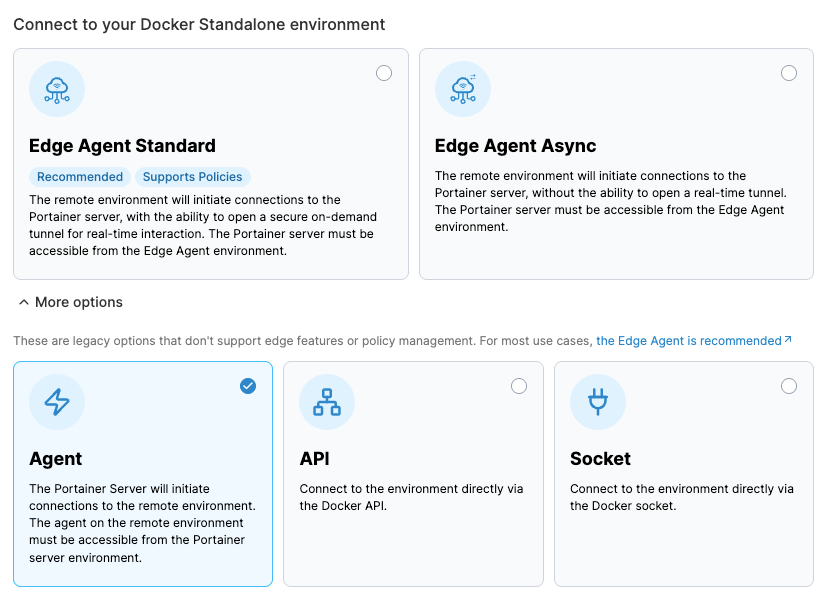
In your Management Server, start adding a new environment as a Docker Standalone via Portainer Agent; copy the docker run command the wizard gives you and run it on one of your KubeSolo VMs. Back in the wizard, enter that agent's host and port to complete the registration. Confirm it shows online in the environment list before moving on.
Add an existing Docker Swarm
Docker Swarm is added the same way as Docker Standalone but the Portainer Agent is deployed as a service, not a container, so every node in the swarm runs one instance of the agent. That is what lets Portainer target specific nodes for stack placement decisions (through the X-PortainerAgent-Target header) and stream logs from any node without you knowing which one has the container.
The agent service uses serf-based cluster membership between agent instances to coordinate; the Management Server talks to one of them (whichever is behind the swarm's routing mesh on the published port), and that agent proxies through to whichever node holds the target container. That requirement, port 9001 reachable from the server to every manager and worker, is exactly the case where Portainer's own guidance points to the Edge Agent instead: if opening 9001 across the whole swarm is not straightforward, use Edge Agent Standard or Async (chapters 10 and 11) rather than working around the direct Agent's connectivity requirements.
Docker Swarm's own best-practice guidance is three managers as the practical minimum for anything you would call production; Portainer defaults line up with that expectation. A single-manager Swarm should probably be a Docker Standalone install instead.
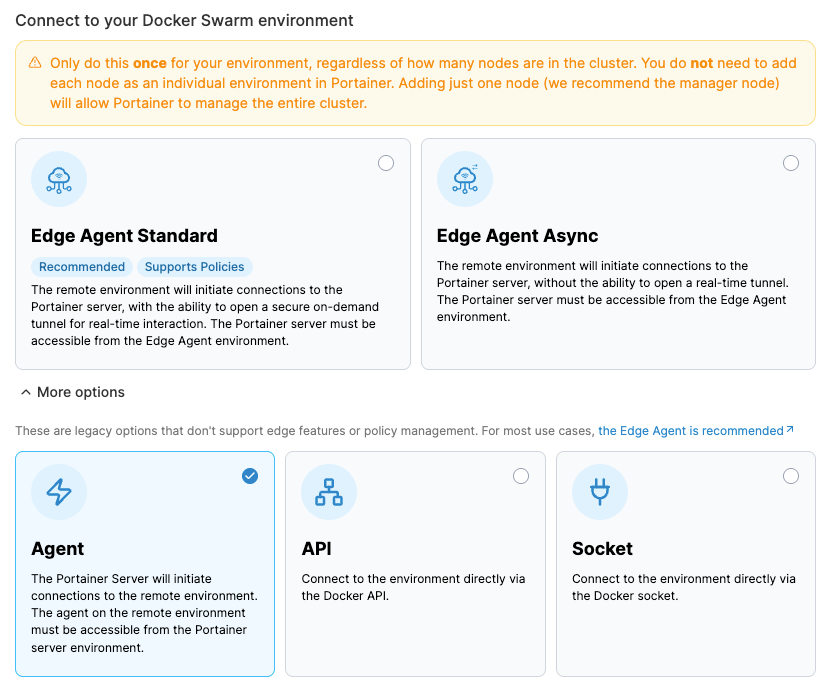
Add your D2K-swarm KubeSolo VM as a Docker Swarm environment. Because D2K-swarm presents Docker Swarm's API surface backed by Kubernetes, the Portainer Agent installs and behaves as if it were a real Swarm; you get to learn Swarm environment management without provisioning a real Swarm cluster.
Add an existing self-managed Kubernetes cluster
Self-managed Kubernetes onboarding installs the Portainer Agent as a Deployment (one replica) plus a headless Service. The agent uses the in-cluster service account by default, which is why namespace-level RBAC works properly out of the box: non-admin Portainer users act through a user-scoped Kubernetes client built around their own service account and token, not the cluster-admin credentials the agent was installed with.
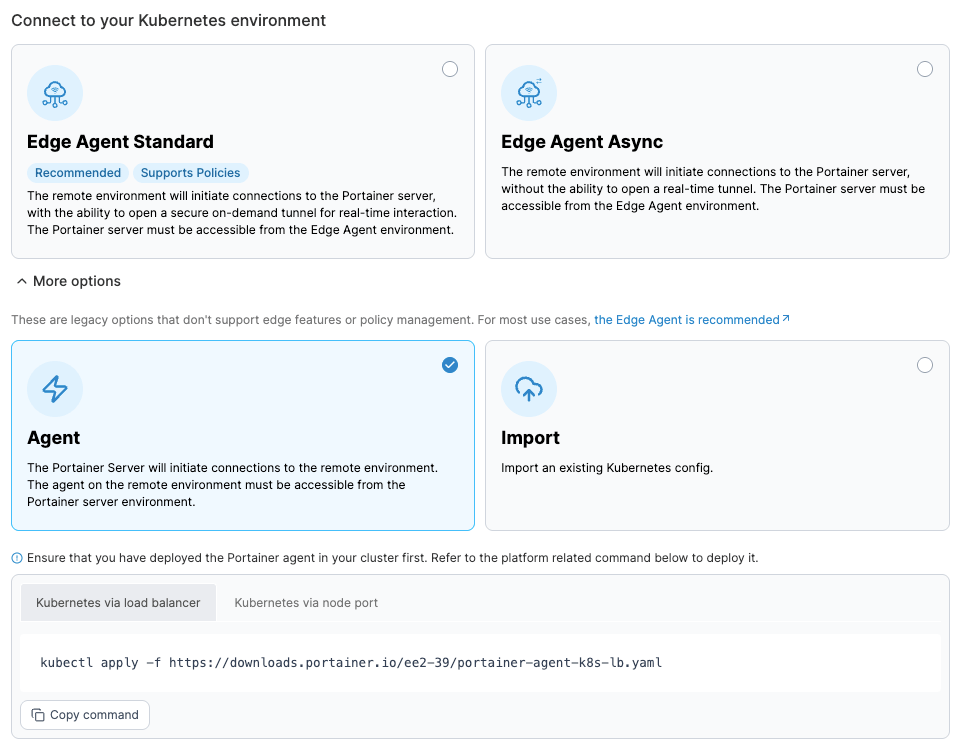
As with Docker, the wizard leads with Edge Agent Standard and Edge Agent Async for Kubernetes; the direct Portainer Agent and kubeconfig import are the legacy options it lists after them. The walkthrough below uses the direct Agent because installing it in the lab is the clearest way to see the in-cluster service-account mechanics that make namespace RBAC work; for a real deployment, prefer Edge unless you have a specific reason to keep a direct, always-reachable agent (chapters 10 and 11 cover the Edge path).
Deployment methods for the direct agent: apply a YAML manifest published by Portainer (the wizard hands you the exact manifest for your version), or install via Helm chart. Either way, expose the agent through a NodePort or LoadBalancer service that the Management Server can dial, and register that address from the server.
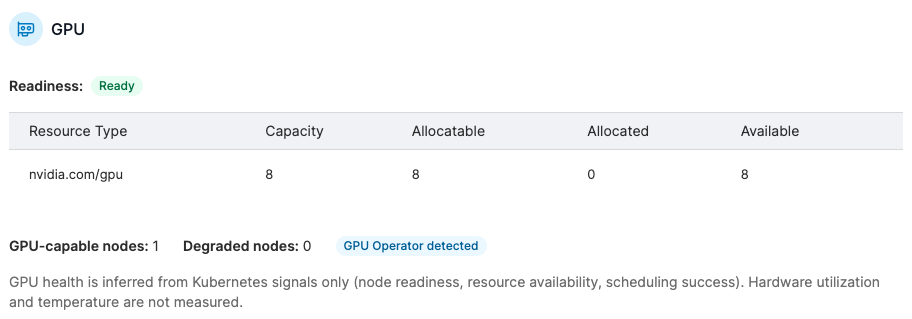
On a Kubernetes cluster, the Portainer Agent also shows GPU capability. If the cluster runs the NVIDIA GPU operator, set WITH_GPU_OPERATOR on the agent environment (the Portainer Helm values expose this); the agent will emit the Portainer-Agent-GPU-Operator header, and the GPU visibility endpoint (Environments → the cluster → Kubernetes → Cluster → GPU) will populate with per-node GPU details and GPU-requesting workloads. Without the flag, the GPU page shows empty, and the answer is almost always the agent flag rather than a missing operator.
Add managed Kubernetes: AKS, EKS, GKE
Managed Kubernetes clusters onboard the same way as self-managed ones: install the agent as a Deployment plus Service, expose it to the Management Server, register the address. Nothing about the fact that the cluster is managed by a cloud provider changes the onboarding shape.
What does change is credential handling. If you plan to have Portainer provision new managed clusters, or reach the cluster's control plane API for advanced operations, you set up cloud credentials in Portainer for that provider (Environments → Add environment → the KaaS path). Those credentials get stored as cloud credentials in the datastore and are used to build the appropriate cloud SDK client at operation time.
In most cases the answer to a "we already have AKS/EKS/GKE, just manage what we have" question is: install the agent using the wizard's provided manifest, expose the service, add the environment, done. Provisioning new clusters from Portainer is a legitimate feature, but it is not required to manage a cluster that already exists.
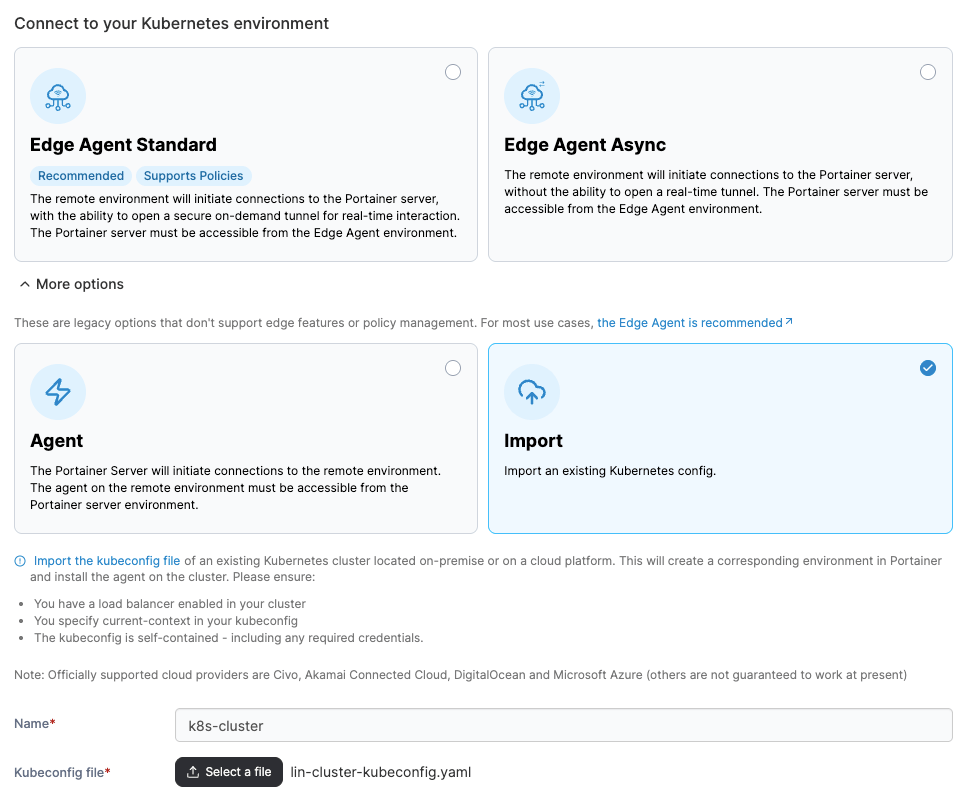
For further details on importing a managed Kubernetes cluster, see the Portainer documentation.
If you have provisioned a KaaS cluster (AKS/EKS/GKE) as an optional lab addition, add it now as a Kubernetes environment. If not, use one of your KubeSolo VMs as the second Kubernetes environment; the mechanics are identical.
Add a Podman host
Podman is a Docker-API-compatible container engine some enterprises pick for its rootless posture and its lack of a persistent daemon. Portainer manages Podman hosts through the Podman path in the Environment Wizard; the Portainer Agent installs as a container on the Podman host and speaks to the Podman socket the way it speaks to the Docker socket on a Docker host.
Most of the Docker Standalone operating model applies. Container operations, stack deployment (compose), image management, volumes, networks; all work. The differences show up at the edges (specific socket paths, rootless considerations, quadlet integration if you use it), and Portainer handles them as long as the agent is deployed the way the wizard describes.
Podman is not covered further in the lab because it does not appear in the four-VM baseline; if you are using Podman, this chapter and the docs are the reference.
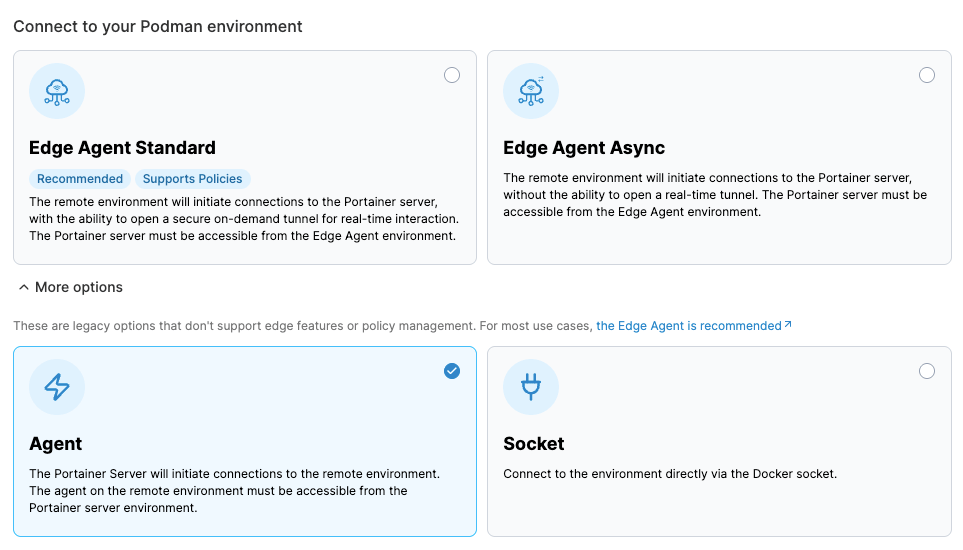
Provision KubeSolo directly
KubeSolo is Portainer's lightweight single-node Kubernetes for cases where full cluster semantics are the wrong tool: constrained hardware, edge appliances, small management VMs, environments where clustering delivers no benefit. It is Kubernetes-compatible without the multi-node overhead, and it is what your lab is running.
To provision a KubeSolo instance from Portainer, the target host has to be reachable and has to meet the KubeSolo prerequisites (a supported Linux, the required kernel features, and a bootstrap agent). The wizard walks a target-host installation, deploys KubeSolo, and then attaches the resulting cluster as a managed Kubernetes environment automatically, so you never have to install the Portainer Agent separately.
This is the recommended pattern for small deployments and for the Portainer Management Server host itself. It gives you a real Kubernetes environment to run things on (or to host Portainer on) without the operational weight of a full multi-node cluster.
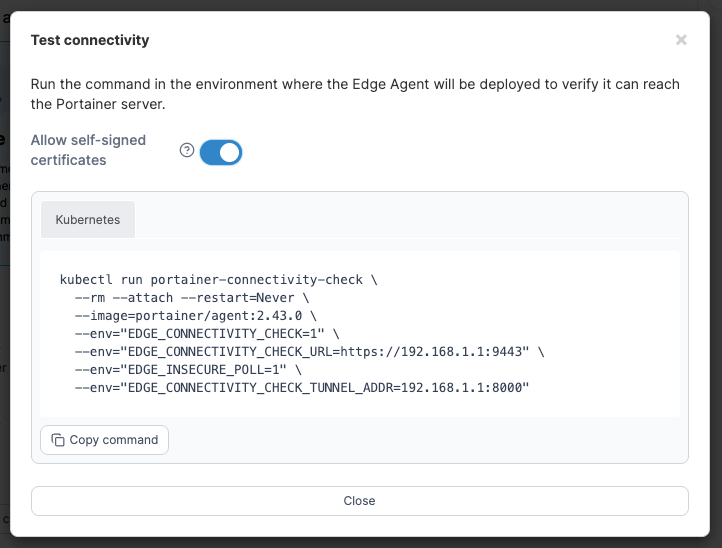
For further details on provisioning KubeSolo, see the Portainer documentation.
Provision Talos via Sidero Omni
Sidero Omni is the management plane for Talos Linux, the immutable-OS Kubernetes distribution. Portainer integrates with your Omni installation through a cloud credential of type omni (Omni endpoint plus a Sidero service account key), and once configured, Portainer can inventory machines, define clusters, provision them, and automatically deploy its edge agent into the resulting cluster so it appears as a managed environment.
The flow: register an Omni credential (Settings → Shared credentials → Sidero Omni), define a cluster spec through the Portainer UI (control plane machines, workers, cluster-level patches, per-machine install disk and user disk, network interfaces), and submit. Portainer calls Omni's cluster template API, tracks the provisioning through a registry (which is why an interrupted provisioning survives a Portainer restart; a recovery step runs at startup), and once Omni reports the cluster ready, deploys the Portainer edge agent into it (namespace, service account, cluster role binding, agent Deployment with an edge key). From then on the environment behaves as a normal edge Kubernetes endpoint.
The compatibility check between Talos and Kubernetes versions runs before provisioning; unsupported combinations get rejected at the API rather than causing a mid-provisioning failure. If you see "the version I picked was rejected," consult the current Talos/Kubernetes compatibility matrix and try again.
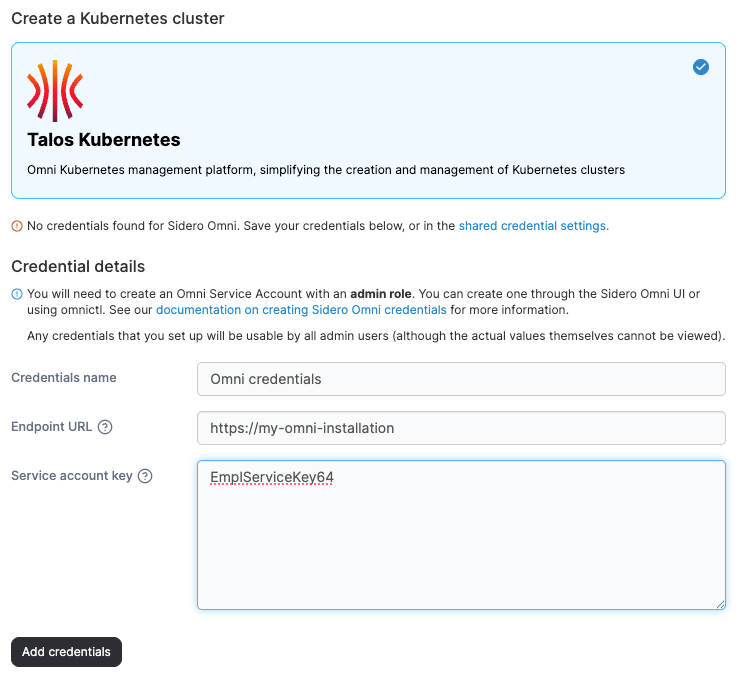
If an Omni-provisioned cluster comes up in Omni but never appears in Portainer, the edge agent deployment step failed rather than the provisioning. Check the server log for "DeployPortainerAgent" operations (namespace, service account, cluster role binding, deployment; each logs distinctly), then walk the usual edge onboarding checks (is the edge key's URL reachable from the new cluster). Do not assume Portainer "lost" the cluster.
For further details on provisioning Talos via Sidero Omni, see the Portainer documentation.
Edge onboarding: tunnel (standard) mode
This is the connection method the Environment Wizard now leads with for Docker Standalone, Docker Swarm, and Kubernetes alike, and the one to reach for by default rather than only when a site is obviously remote or NAT'd. It works whenever the environment has outbound HTTPS to the Portainer server, which describes almost every environment; what it removes is the requirement that the server be able to reach back in. Regional Kubernetes clusters, branch-office Docker hosts, remote sites behind NAT, and ordinary same-VPC hosts you would simply rather not open another inbound port on all qualify.
The flow: on the Management Server, generate an edge key (Environments → Add environment → [Select your environment type] → Edge Agent → Standard). The wizard produces a base64 edge key encoding the Portainer instance URL, the tunnel server address, the tunnel server fingerprint, and the endpoint ID. Paste that key into the agent's environment on deploy:
EDGE=1
EDGE_KEY=<key>
EDGE_ID=<unique-per-device>
The agent starts polling; the environment appears in Portainer at the next poll.
Two edge-key details that cause the majority of triage tickets. The tunnel address baked into the key is derived from the edge URL hostname plus --tunnel-port by default; if the reachable tunnel endpoint at your site is different from the UI hostname (typical when the UI is behind a corporate proxy but the tunnel port is exposed on a different hostname), set --edge-tunnel-server-address on the server and re-issue keys. Second: the agent polls the URL inside the edge key, not whatever URL the server currently thinks it has. If the server moves behind a new load balancer, existing edge keys keep polling the old URL; regenerate.
A tunnel key with an HTTP (not HTTPS) URL will still work but the agent will log "This agent has been configured using an insecure connection, which can limit functionality." Do not deploy an environment on HTTP.
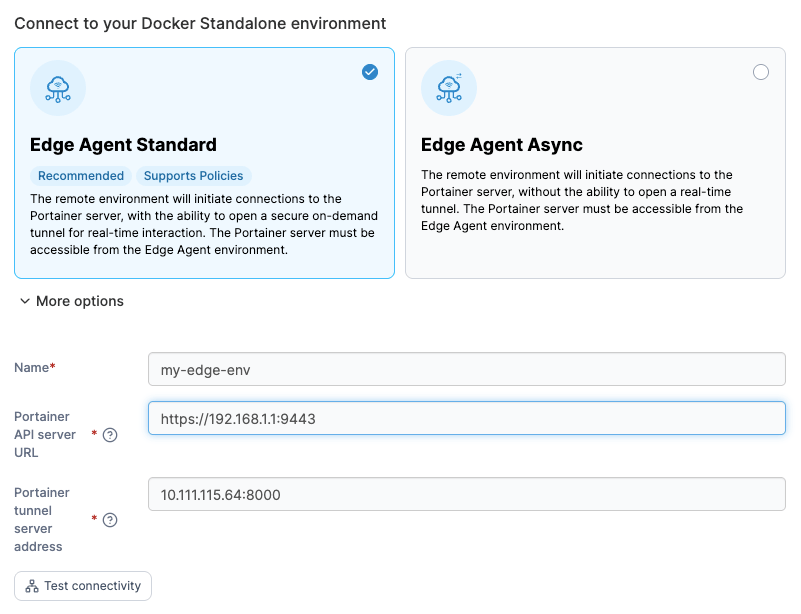
For further details on how the Edge Agent's tunnel connection works, see the Portainer documentation.
If you have a spare VM, deploy an Edge Agent in tunnel mode against your Management Server to see the flow end-to-end. Watch the server logs when you deploy the agent; you should see the agent's poll appear within seconds. Click into the new environment from the UI; the first click triggers a REQUIRED tunnel, and you can see the tunnel open on the next poll.
Edge onboarding: async mode
Async mode is what you use when the environment cannot hold an open tunnel: intermittent connectivity, satellite or cellular uplink, air-gapped-with-sync-windows, or a security posture that explicitly forbids interactive management to certain sites. Async removes tunnels entirely and replaces them with a command queue: the agent snapshots and pings the server on independent intervals, the server hands back queued commands, and side-effectful actions execute asynchronously.
The flow is the same as tunnel mode with one flag change: deploy the agent with
EDGE=1
EDGE_ASYNC=1
and mark the endpoint as async on the Portainer side (the server's AsyncMode flag on the endpoint has to match the agent's environment; if they disagree, tunnels are refused with "cannot open a tunnel for async edge environments" and commands queue but never execute).
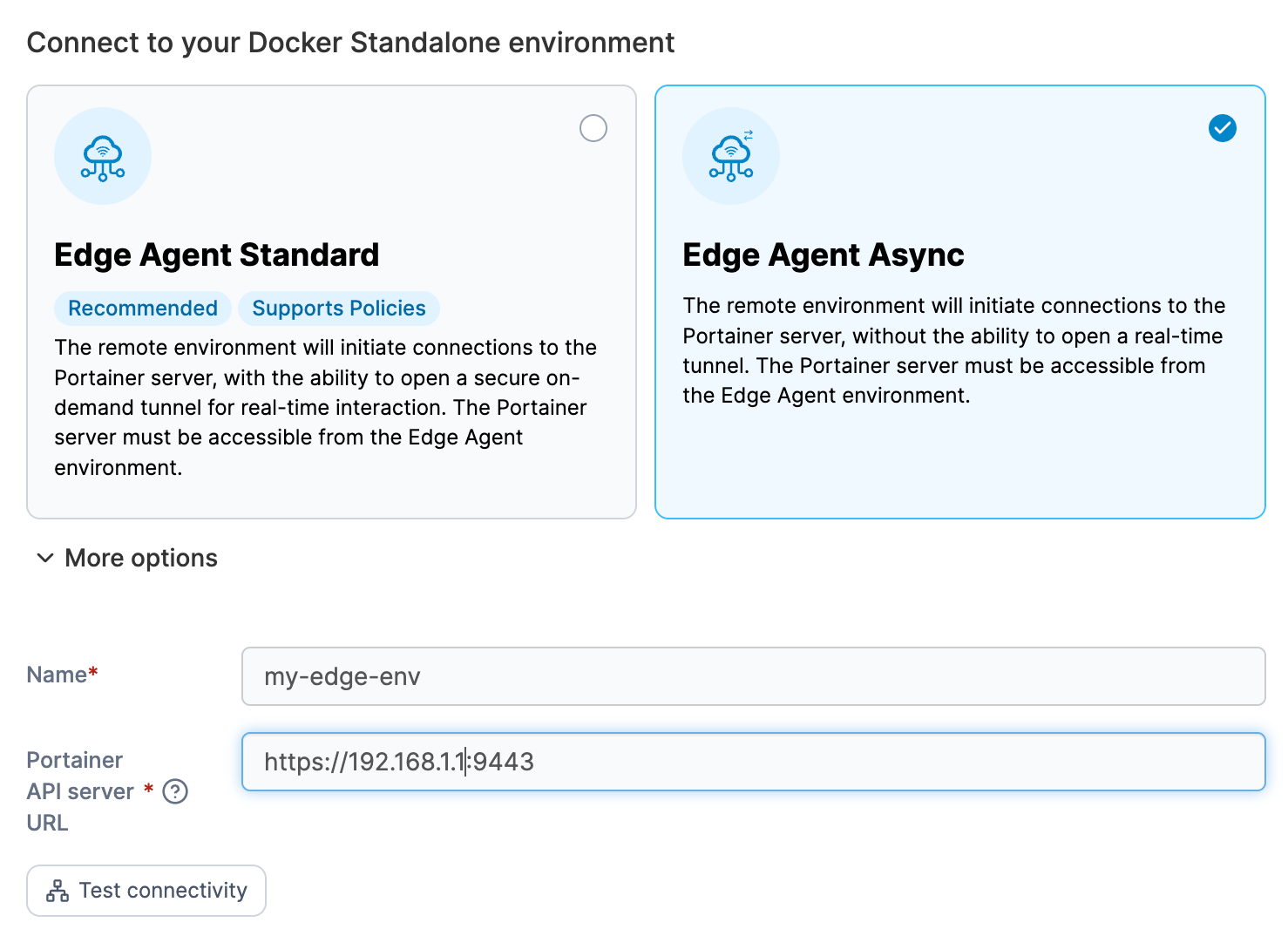
Three intervals are dictated by the server for an async endpoint: ping, snapshot, and command. Set them at the endpoint level or fall back to the global Settings defaults. Longer intervals mean lower bandwidth and slower reactivity; a 5-minute command interval means server-side actions take up to 5 minutes to reach the device. This is a legitimate tradeoff for cellular or satellite-connected fleet; it is not a defect.
If you have async fleet and you want policies to reach it, turn on the async-policies feature flag (Module 5, chapter 8). Without it, policies attached to a group containing async environments simply do not distribute to those environments. This is by design (async policy distribution is opt-in), and it is a common cause of "why aren't my policies applied on the industrial sites."
Automatic Edge Environment Creation (AEEC)
An unknown agent presenting a valid global edge key gets its environment created on the fly by the async handler. The environment lands in the edge groups, environment group, and tags specified by the agent's environment variables (EDGE_GROUPS as colon-separated group IDs, PORTAINER_GROUP for the environment group ID, PORTAINER_TAGS for tag IDs). Type and container engine come from the agent's platform headers. This is how you provision thousands of edge devices without pre-registering each one: bake the same global edge key and the group/tag hints into your device image, and every device shows up correctly grouped on first contact.
Trust behavior on AEEC: the endpoint's UserTrusted flag is set from the server's TrustOnFirstConnect setting; if that is off, the endpoint appears in the waiting room and an admin has to trust it before it can do anything.
For further details on the ping, snapshot, and command intervals for async environments, see the Portainer documentation.
Groups, tags, and the trust flow
Portainer has three grouping primitives, and they are not interchangeable.
Environment groups are the primary scoping unit for RBAC and for policies. An environment belongs to exactly one environment group; team-to-role assignments happen against an environment group, not against individual environments. Get the environment groups right first; roles become simple after that.
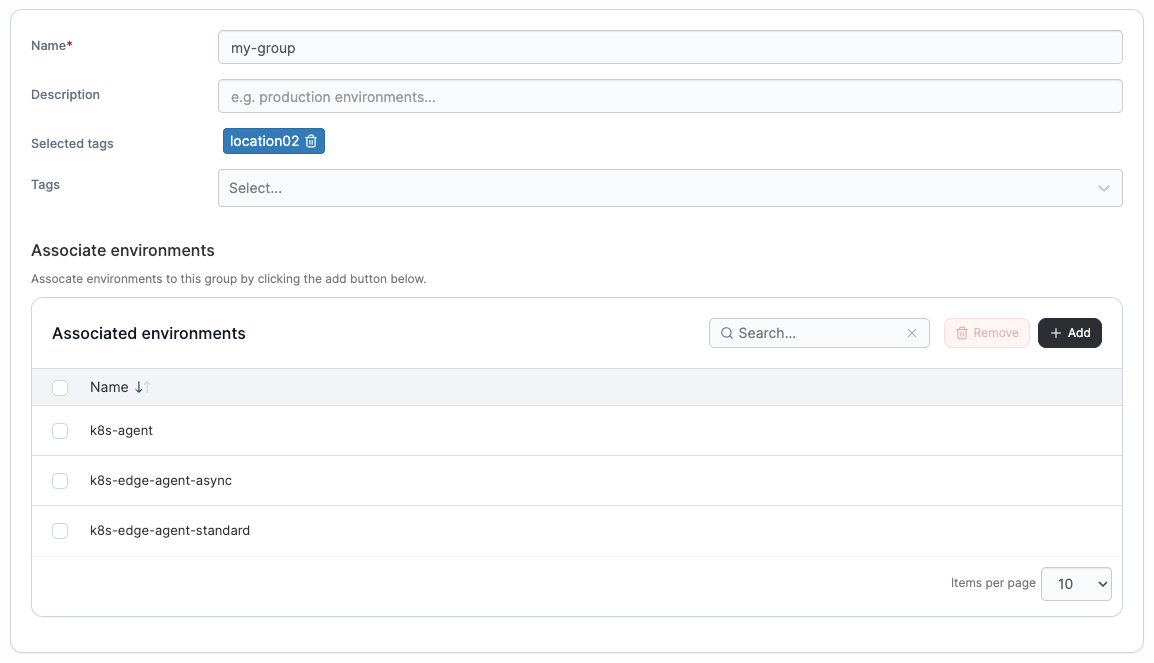
Tags are freeform labels. An environment can have many tags. Tags are used for filtering the environment list, for selecting environments in some UI operations, and for edge stack targeting where you want dynamic membership rather than static edge group membership.
Edge groups are used specifically for edge stack, edge job, and edge configuration targeting. An edge group can be static (a specific list of edge environments) or dynamic (defined by tags). Dynamic edge groups mean an edge stack deployed to "all Docker edge devices with the retail-store tag" automatically covers new devices added to that tag without you re-deploying anything.
Trust is a separate flag on each environment. By default a new edge environment (via generated key or AEEC) is untrusted, meaning it can register and poll but cannot execute any action; an admin has to explicitly trust it from the waiting room. Turn on TrustOnFirstConnect in Settings if you want the waiting room bypassed. Untrusted devices attempting API access get "the device has not been trusted yet"; attempts to open a tunnel are refused for the same reason.
An environment removed from Portainer is not automatically "removed" from a licensing perspective until the removal reconciles; stale environments still count against a Free-tier license node total until you actually delete them. If overuse enforcement is biting, walking the environment list and deleting genuinely-gone environments is often enough to reset the timer.
For further details on environment groups, see the Portainer documentation.
What is next
Your Portainer server now has environments to manage. Module 7 covers centralized AAA and the Kubernetes API proxy - take a backup first, since you're about to configure a lot of governance state.
Next: Module 7 · Identity and access