Observability and Day-2 operations.
Portainer's observability stack is enough for operational alerts, not for application observability. This module walks the embedded Prometheus and Alertmanager, agent-side rule evaluation for edge environments, notification receivers, SIEM export via syslog, and the day-2 operator surface (containers, pods, exec sessions, log streams) that is where most operator time actually goes. The last chapter names the specialist products Portainer coordinates against for deep observability and workload backup.
What operational observability is (in the Portainer sense)
Portainer's observability is scoped deliberately. It is enough to answer "is this workload healthy right now," "did any environment in the fleet miss its check-in in the last hour," and "did any alert rule I care about fire in the last day"; it is not enough to answer "what is the p99 latency of this service under production load," or "trace this request across seven microservices." For the second class of question, you need Datadog, Dynatrace, Splunk, or a full open-source stack (Prometheus, Grafana, Loki, Tempo); chapter 08 covers where those integrate.
The scope choice is deliberate. Building a deep observability platform inside Portainer would duplicate work the specialists do better, and it would tempt customers to abandon their existing observability investment (which they will not, so the duplication is worse than useless). The scope Portainer covers is the piece that has to exist inside the operator control plane: fleet-wide alerting, per-environment health, day-2 operator visibility on containers and pods. That is what this module walks.
Day-2 operations sits alongside observability because the same operator opens a log stream, watches for the alert, and cracks open a pod exec to fix it. They are one workflow; splitting them into different modules would separate what an operator does in a single session.
The embedded Prometheus and Alertmanager
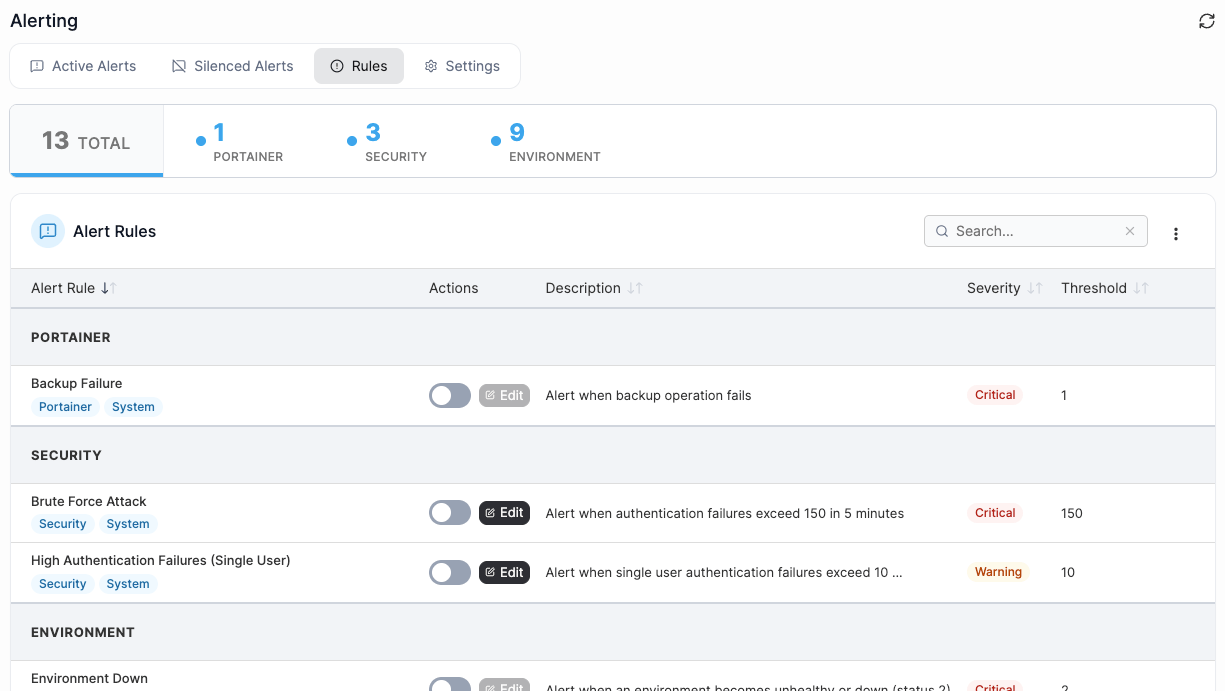
Portainer's alerting model has three cooperating pieces: an embedded Prometheus inside the server, an embedded Alertmanager inside the server, and agent-side rule evaluation on edge environments. Together they give you fleet-wide alerts without you having to run a separate observability stack for basic operational signals.
The server runs an in-process Prometheus (TSDB, PromQL engine, scrape manager, rules manager, notifier) with 1-hour retention and a 15-second scrape interval, targeting the server's own /api/metrics. The 1-hour retention is intentional: this Prometheus is for alerting, not for historical dashboards. For historical retention, integrate a real Prometheus (or a commercial equivalent) and scrape Portainer's /api/metrics from there. The embedded instance keeps the alert path self-contained; the external instance keeps the history.
If the embedded Prometheus fails to start, the server logs "failed to create/start central prometheus service, continuing without it" and runs without server-side alert evaluation; the failure is non-fatal by design. Agent-evaluated alerts and the alerting settings API continue to work. If your server logs this line, that is the diagnosis; the usual cause is a port conflict on 9093 (Alertmanager) or a filesystem permission issue on the Prometheus data path.
The embedded Alertmanager (on 127.0.0.1:9093, never exposed) accepts notifications from both the server-side Prometheus and from agent-side evaluators. It carries canonical inhibit rules so that a single incident firing at multiple severities gets deduplicated to the highest severity; critical inhibits warning and info, warning inhibits info, matched on alertname, alert_rule_id, portainer_environment_group_id, and portainer_environment_id. Alert rules created with custom labels outside this canonical shape do not inhibit each other; that is a common cause of "we get duplicate alerts at three severities for one thing."
Agent-side rule evaluation
Edge agents receive alert rules in their poll response (as structured rules plus pre-compiled Prometheus YAML). They run their own embedded rule evaluator (default 60s interval) against local metrics and notify the server's Alertmanager. This is what lets you alert on a device that is not directly scrapable from the Management Server, which is most of the fleet in an industrial or distributed-edge deployment.
The mechanics matter for triage. When an alert fires from an edge environment, the alert originates on the agent, gets pushed to the server's Alertmanager, gets deduplicated by the canonical inhibit rules, and gets forwarded to receivers. If an alert you expect never arrives, the trace order is: is the rule attached to the environment (check the agent's poll payload), is the agent evaluating it correctly (check the agent logs for evaluator errors), is the notification path from agent to server working (check the server's Alertmanager logs for received notifications), and is the receiver configured correctly (test the receiver from the alerting settings UI).
Invalid rule YAML is hash-tracked so an agent does not repeatedly try to apply broken rules; the agent reports the reload error back to the server, and the rule shows in an error state in the UI. Fix the YAML and the next poll picks up the corrected rule.
Notification receivers and silencing
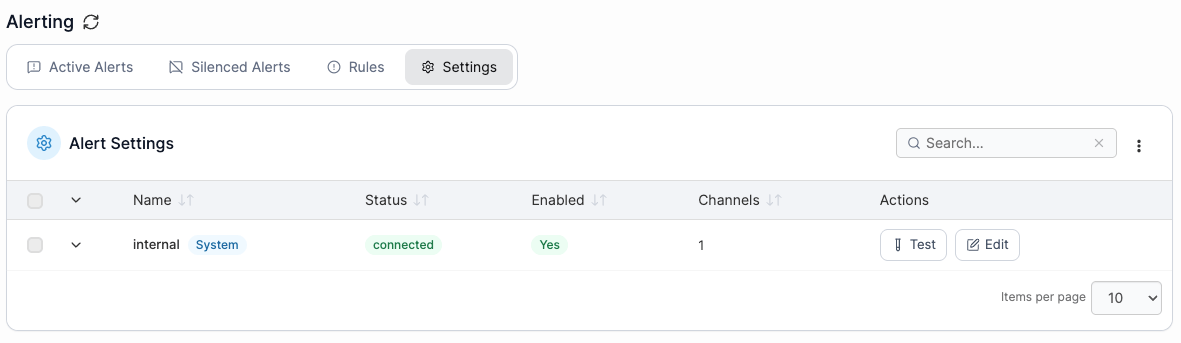
The alerting settings API (/api/observability/alerting, admin) manages receivers (email, Slack, webhook, PagerDuty, and so on) and writes them into the Alertmanager configuration. A connectivity test endpoint lets you verify a receiver before saving it; use it, because a receiver that is misconfigured silently drops every alert routed to it. Silences are managed through this surface; a silence quiets alerts matching its label selector for a bounded window, useful during planned maintenance where the alert would otherwise fire and page someone unnecessarily.
Receiver routing (which alert goes to which receiver based on severity, environment group, or arbitrary label) is configured through the Alertmanager routing tree. Portainer's UI exposes this as a simplified routing configuration; complex trees can be authored directly in Alertmanager YAML through the settings API if you need shapes the UI does not model. The advantage of the API path is version-controllable configuration; the disadvantage is that it bypasses the UI's validation, so a syntax error will cause the Alertmanager to reject the whole config.
Practical guidance on receivers: use webhook receivers pointed at your incident-management platform (PagerDuty, Opsgenie, VictorOps, Grafana IRM) rather than direct email or Slack for anything on-call routes. Direct email and Slack are fine for informational alerts that never wake anyone up. The receiver definition supports templating; use the templates to include the environment ID and the alert rule ID in the payload, so the recipient can find the alert back in Portainer without hunting.
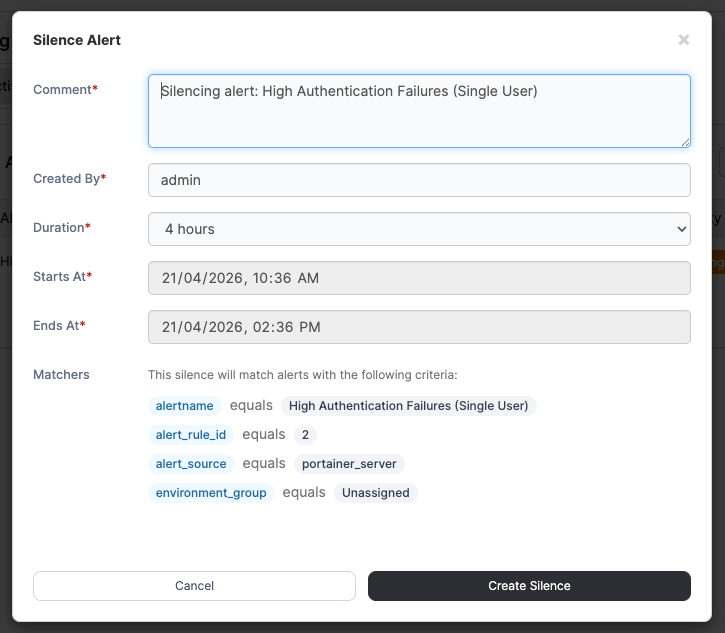
For further details on notification receivers and silencing alerts, see the Portainer documentation.
Create a simple alert rule (say, container restart count over 5 in the last hour) targeting one of your environments. Configure a webhook receiver pointing at a service you can watch (webhook.site is fine for a lab). Trigger the alert (kill a container in a loop). Confirm the alert reaches the receiver and, if you fire it at multiple severities, that inhibition deduplicates.
SIEM export via syslog
Portainer streams events to syslog for SIEM ingestion. Every audit event (Module 7, chapter 10), every policy change, every alert firing, every administrative action gets emitted to the syslog endpoint you configure. The syslog integration supports RFC 3164 or RFC 5424 formats, over UDP, TCP, or TCP with TLS. Configure it through Settings → Log configuration; once configured, Portainer streams events to the target syslog endpoint asynchronously. Failures do not block the originating action; a syslog outage does not lock up Portainer.
Portainer targets three SIEM shapes explicitly: Splunk, Azure Sentinel, and generic syslog for anything else. Pick RFC 5424 with TCP+TLS by default unless your SIEM specifically wants RFC 3164, and always use TLS in production. UDP is fine for a lab and unacceptable for anything sensitive. If your SIEM does not consume syslog directly, a syslog-to-your-SIEM relay is a common pattern; that is your responsibility, not Portainer's.
The audit trail (Module 7) is the in-product record of what happened; SIEM is the egress for that record into your long-term store. Both should be enabled for anything a security or audit team cares about; the in-product view is for immediate triage, and SIEM is where events live long enough for compliance review.
Syslog delivery is fire-and-forget by design; there is no acknowledgment path from the SIEM back to Portainer, and no local queueing beyond the OS buffer. If the SIEM endpoint is unreachable long enough, events will be dropped. For high-assurance audit egress, put a local syslog forwarder (rsyslog, syslog-ng) between Portainer and the SIEM so the forwarder can buffer and retry. Portainer's model is streaming events out; durable delivery is the forwarder's job.
For further details on streaming logs to a SIEM, see the Portainer documentation.
The day-2 operator surface
Day-2 operations is the collection of ongoing tasks a platform operator does after everything is stood up: inspecting containers and pods, streaming logs, opening exec sessions, restarting workloads, examining events, running one-off manifests, checking resource usage per namespace, and so on. Portainer's UI is the operator control plane for these tasks; the underlying runtime is what you already have.
On Kubernetes, this includes: applications view (a unified list of Deployments, StatefulSets, DaemonSets, and CronJobs with health status), pods view (individual pods with restart counts, resource usage, and logs), YAML-based edit of any resource, drain and uncordon for nodes, PVC and PV inspection, ingress management, service management (including endpoints), RBAC objects inspection, events feed, describe output, aggregate metrics dashboard (fed by the metrics-server if present in the cluster), and pod security. The Kubernetes handler surface (/api/kubernetes/) covers named endpoints for each of these; anything not covered by a named handler falls through to the raw Kubernetes API proxy at /api/endpoints/{id}/kubernetes/... with server-side RBAC applied (Module 7, chapter 06 covers the proxy in detail).
On Docker environments, the equivalent operator surface: containers list (running, stopped, all), images list (pull, push, remove), volumes and networks, container inspection, streaming logs, exec into containers, and stats. On Swarm, add service management (create, update, remove, scale, rollback) and stack management. On both, the agent proxies the operator's Docker API commands with the operator's Portainer-side authorization applied first.
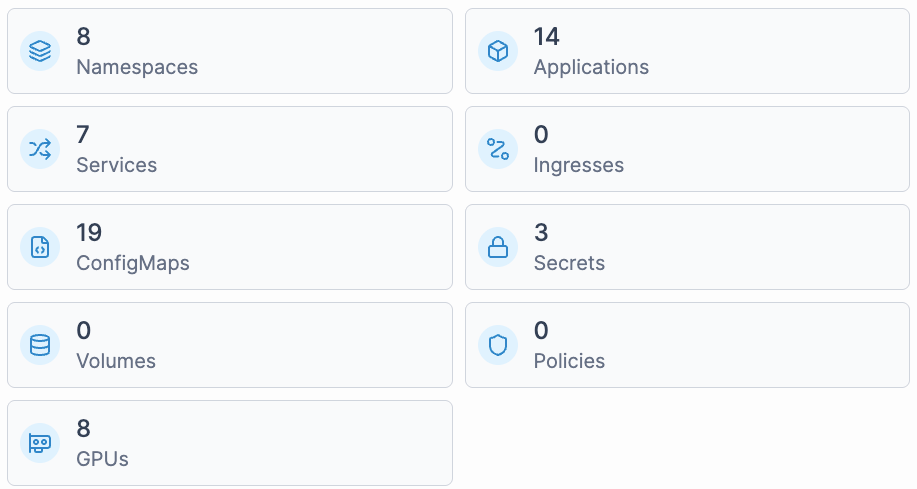
On one of your Kubernetes environments, open a pod's log stream in one browser tab and an exec session in another. Confirm the log stream is live (send a bit of output from the exec). This is the operator flow that will define most of your day-2 experience.
Manifest dry-run and other safety features
A useful safety feature worth calling out: the Kubernetes manifest dry-run endpoint validates one or more YAML manifests against the cluster with a 30-second bound, returning pass or fail per resource. Multi-document YAML is supported. A namespace parameter is applied to namespaced resources that do not declare one; a resource declaring a different namespace is rejected. This backs the "validate before deploy" flow in the UI, and it is worth knowing about when you want to preflight a config.
Dry run tests admission at that moment, so a passing dry run does not guarantee a passing deploy (webhook flakiness, quota consumption, race conditions), but it catches most bad manifests early. For fleet deploys through GitOps or edge stacks, dry-run each manifest before shipping it as an edge stack; the alternative is discovering the failure during the polling cycle, which is fine for one environment and not fine across fifty.
Other safety features: staged rollout on Kubernetes uses standard Kubernetes rollout mechanisms (which Portainer surfaces in the UI); pause and resume on rollouts work through Portainer; scale to zero and back is a supported operation. On Docker Swarm, service update rollback is a first-class operation through Portainer's Swarm handler. None of these is Portainer-specific; they are Portainer surfacing the underlying runtime's safety features in a consistent operator surface.
Prove the "catch it before the fleet" story. Craft a small Kubernetes manifest with a deliberate error (a Deployment referencing a nonexistent ConfigMap in envFrom, or a Service selector that matches nothing, or an invalid API version). Run it through the dry-run UI on one of your Kubernetes environments; confirm the failure and the specific error the cluster returns. Fix the manifest; re-run; confirm pass. Now apply the passing manifest as a real deploy; it lands. Finally, take a manifest that dry-runs clean and change it so it would violate a quota (a resource request larger than the namespace quota allows); notice the dry-run may still pass, because quota consumption is evaluated at deploy time. That gap is the "webhook flakiness, quota, race conditions" caveat in practice, and it is why dry-run is a filter for most bad manifests, not a guarantee.
Integrated, not replaced
Portainer's embedded observability stack is deliberately scoped to alerting. For the observability categories Portainer does not cover, your existing platform is the answer.
Deep observability platforms. Datadog, Dynatrace, Splunk, New Relic, and the open-source Prometheus/Grafana/Loki/Tempo stack all sit outside Portainer as your authoritative observability platform. They handle long-retention metrics, distributed tracing, log aggregation and search, and application performance monitoring. Portainer's OneUptime integration is the built-in option: the observability-k8s policy (Module 8) deploys the OneUptime kubernetes-agent as a Helm chart with a preset (standard, gke-autopilot, or eks-fargate) and an ingestion key (auto-provisioned by Portainer from OneUptime, or supplied). The environment-facing logs and metrics endpoints then query OneUptime and normalize the result.
Workload backup and disaster recovery. Portainer backs up its own datastore (Module 12); it does not back up the workloads it manages. Velero (open source), Kasten K10 (Veeam), and CloudCasa (Catalogic) handle Kubernetes-object-plus-PVC backup with cloud-provider snapshot integration. Deploy them into your cluster; they run alongside Portainer, and Portainer manages their Kubernetes objects the same way it manages any other workload.
Service mesh. If you need mTLS between services or advanced traffic management, deploy Istio or Linkerd. Portainer will manage the mesh's Kubernetes objects the same way it manages any other workload, but it does not itself provide the mesh.
The pattern is the same as every other "integrated, not replaced" note in this course. Portainer is the operator control plane; the observability and DR products are specialists. Neither displaces the other; they interoperate through the object surface Portainer manages.
Observability lab
End-to-end lab tying the module together. Create an alert rule against your lab-fleet environment group (from Module 8) that fires on any container restart count over 3 in 15 minutes. Configure a webhook receiver against a service you can watch. Configure syslog export against a local syslog listener (netcat listening on a TCP port is fine for a lab):
nc -l 5514Trigger the alert. Confirm you see the alert on the receiver, the audit event in the in-product activity log, and the syslog message on your listener. Then create a silence for the alert rule for the next 10 minutes and re-trigger; confirm the receiver stays quiet but the audit event still records.
What is next
Module 11 covers Portainer add-ons: the catalog, the Helm-based lifecycle, and the machine API that lets a running add-on read and write its own settings. It also covers how Portainer-Run installs as an add-on, demonstrating the extension pattern the platform is built on.
Next: Module 11 · Add-ons