Configure for the enterprise.
You have Portainer running. Before you point real environments at it, harden the server: proper TLS, backup targets, federated authentication, teams instead of users, and the handful of feature flags worth setting on day one. This module walks each one and shows the sharp edges.
SSL certificates
Portainer's fresh install serves HTTPS with a self-signed certificate. That is fine for a lab; it is not fine for anything a user or an agent is going to trust. Replace it with a proper certificate before you configure agents to talk to it.
You have two paths. You can terminate TLS at Portainer itself using --tlscert, --tlskey, and (if you use a private CA) --tlscacert; you supply the cert and key files, and Portainer serves HTTPS with them. Or you can terminate TLS at a reverse proxy in front of Portainer (an ingress controller, an Nginx, an HAProxy, a load balancer) and let that proxy talk to Portainer over HTTP or its self-signed HTTPS. Both are legitimate; production Kubernetes installs almost always terminate at the ingress.
Whichever path you pick, get the certificate right on day one, because the URL in the edge keys you will generate in Module 6 gets baked into every agent you deploy. Change the hostname or the certificate later and you will be re-issuing edge keys, which is not the end of the world but is avoidable.
Deprecated flag aliases still work: --ssl maps to --tlsverify, --sslcert to --tlscert, and so on. If you inherit an install with the old flags, they will still work with a deprecation warning in the logs; update them in a maintenance window rather than in a hurry.
For further details on installing your own SSL certificate, see the Portainer documentation.
Force HTTPS only
By default a fresh install listens on both :9000 (HTTP) and :9443 (HTTPS). In production you want HTTP off entirely, so a misconfigured client cannot accidentally send credentials in the clear.
Turn HTTP off with --http-disabled at startup. If your reverse proxy fronts Portainer and forces HTTPS at that layer, disabling HTTP on the Portainer side too is defense-in-depth; if the proxy ever misroutes or a debug listener gets exposed, there is nothing for it to hit.
Turn on HSTS with the hsts feature flag if the environment supports it (browser HTTPS enforcement); most modern reverse proxies already add this header on their side, so the flag is more relevant when Portainer is terminating TLS directly. Add a Content Security Policy with the csp feature flag if you want the browser to refuse to load unexpected script sources; both are opt-in on purpose because they can break custom integrations if you turn them on without thinking about it first.
For further details on forcing HTTPS only, see the Portainer documentation.
Firewall and trusted proxies
The Management Server needs to expose only two ports externally: HTTPS (9443, or 443 behind a load balancer) for user and agent traffic, and the tunnel port (8000 by default, controlled by --tunnel-port) for edge-standard agents to open reverse tunnels back. Everything else should stay closed.
Internal-only ports include the metrics endpoint (/api/metrics, admin-gated) and the embedded Alertmanager on 127.0.0.1:9093 (loopback only, never exposed). If someone asks whether they should expose the Alertmanager port for external alerting, the answer is no; the Alertmanager is an internal component of the server, and if you want external alerting you use the alerting settings API to configure receivers.
If Portainer sits behind a reverse proxy, tell it which proxies to trust with --trusted-proxies (comma-separated IPs or CIDRs). Without this, Portainer will not trust the X-Forwarded-For or Forwarded headers from the proxy, and the client IP in your authentication activity log will be the proxy's IP rather than the user's. This is a common cause of "why do all my auth events look like they come from the load balancer" tickets.
If you use CSRF-sensitive endpoints (webhooks, WebSocket upgrades in add-ons), configure --trusted-origins with the origins you accept. The add-on gateway also uses this list for WebSocket Origin/Host mismatch checks, which comes up more often than you would expect once you start installing add-ons.
For further details on configuring trusted proxies and origins, see the Portainer documentation.
Backup targets
Portainer supports scheduled backups to three targets: local volume, S3 (or S3-compatible: MinIO, Wasabi, Backblaze B2), and Azure Blob. You can configure one at a time or several in parallel; each has its own scheduler. Separately, an on-demand backup can be downloaded straight from the UI to your local machine, which is useful for taking a snapshot before a change without wiring up a scheduled target.
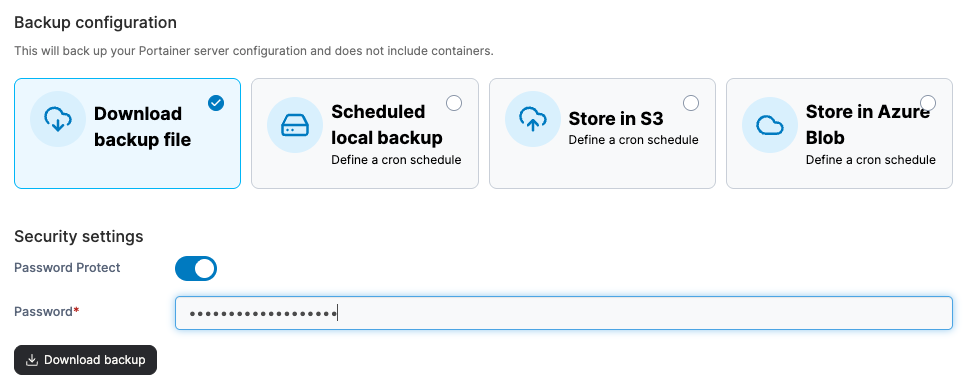
Backups can be password-protected; the archive is encrypted with your password and includes the DB and the TLS material. If you set a backup password, remember it; if you lose it, the backup is unrecoverable and Portainer support cannot rescue you.
Schedule the backup for a quiet time (nightly is typical), and take at least one on-demand backup before you enable auto-patch, so you have a known-good baseline the auto-patch flow can fall back on if something goes wrong during a self-update.
Which of the three targets to actually use in production, and what a restore does and does not bring back, is covered properly in Module 12, chapters 02 and 03; treat this chapter as getting a target configured, and that one as the operating discipline around it.
For further details on configuring backup targets, see the Portainer documentation.
Authentication
Portainer supports four authentication methods: Internal (local username and password, bcrypt-hashed), LDAP, Microsoft Active Directory, and OAuth. LDAP and Microsoft Active Directory both speak LDAP under the hood; the UI treats them as separate paths because AD's schema and group semantics are opinionated enough to deserve their own configuration screen. The OAuth path has four provider options: Microsoft (which covers Entra ID and Azure AD), Google, GitHub, and Custom, which accepts any OIDC v2-compliant identity provider (Okta, Keycloak, Authentik, Ping, Auth0, and so on). You configure one authentication method at a time; you do not run multiple methods concurrently.
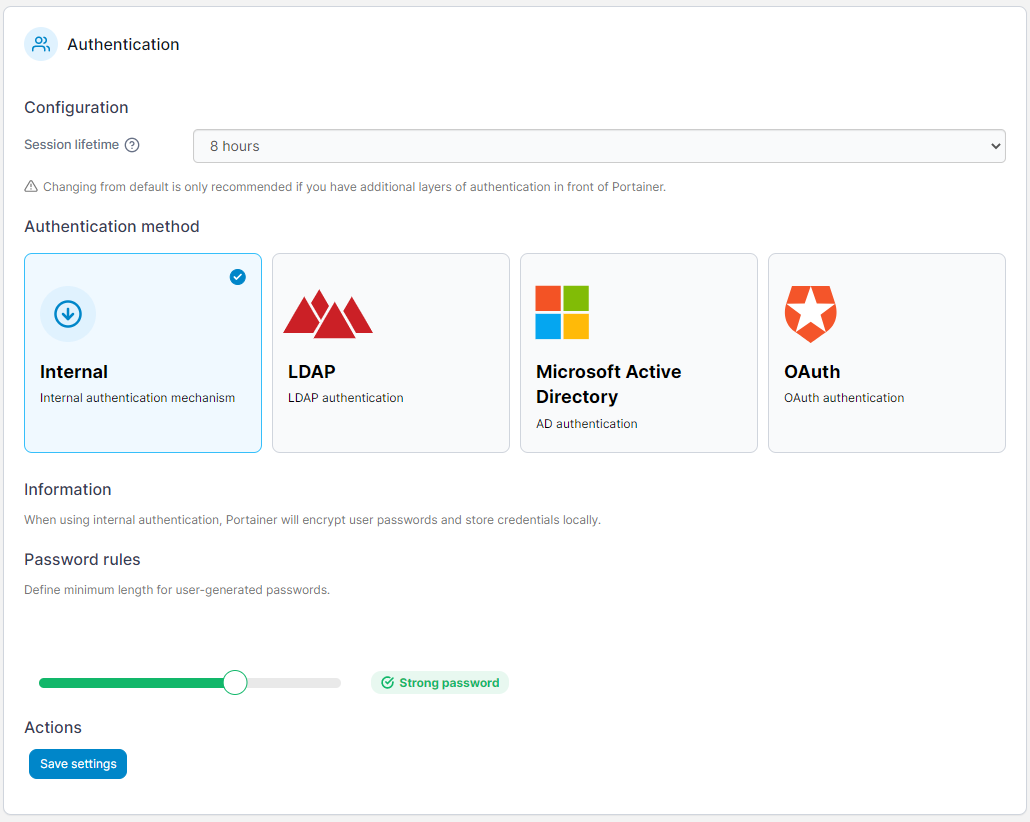
Two behaviors are worth noting before you switch to a federated method.
First, user ID 1 (the initial administrator you created in Module 4) always authenticates internally. This is deliberate: it is the escape hatch when your federated identity provider is misconfigured. If LDAP goes down or your Entra tenant has a bad day, the initial admin can still log in with their local password and fix the configuration. Losing that password locks you out of that escape hatch.
Second, the login endpoint is careful about not leaking whether a username exists. If a lookup fails for an internal, OAuth, or LDAP-without-AutoCreateUsers configuration, the server substitutes a fake user with a valid-format bcrypt hash so that constant-time compare produces the same latency whether the user exists or not. "Invalid credentials" comes back for both cases. This defeats a class of username-enumeration attack; it also means that if you are testing whether a user exists, checking the login endpoint's response time will not tell you.
Setting up LDAP, Active Directory, or OAuth
For LDAP or Microsoft Active Directory point Portainer at your directory server (host and port), configure the bind DN and password (either a service account or anonymous if your directory allows it), configure the search base for users and the search base for groups, and configure the filters that identify a valid user and a valid group. Then map groups to teams. Test the connection before you save the configuration; a bad bind will lock out non-admin users on next login, but not the initial admin (remember, user ID 1 always authenticates internally).
For OAuth: register Portainer as a client with your identity provider, get the client ID and secret, configure the authorization and token endpoints, and pick the claims you want to use for username and team assignment. Providers with well-known OIDC discovery documents (Entra, Okta, Google) make this simple; others (custom Keycloak realms, Dex) require more explicit configuration. OAuth users go through the OAuth code-exchange handler, not the username/password endpoint; if an OAuth user tries the username/password path they get "Only initial admin is allowed to login without oauth," which is expected behavior.
For further details on configuring authentication methods, see the Portainer documentation.
Teams before users
Assign roles to teams, not to users. This is one of Portainer's core RBAC design patterns, and it takes very little effort to get right on day one; correcting it later is much harder.
A user in Portainer is an identity; a team in Portainer is a group of identities that share a role assignment. When you assign the "Environment Administrator" role for a specific environment to a team, every current and future member of that team gets that role there automatically. When you assign the same role to a user, it applies to that user; if you have two hundred users, you have two hundred role assignments to maintain.
Teams also map cleanly onto the LDAP, Active Directory, and OAuth methods configured above. LDAP groups can be synchronized to Portainer teams on every login; OAuth claims can drive team membership at sign-in time. This means the source of truth for who is on the platform team, the operations team, the developers team, and so on, is your directory, not the Portainer datastore. When someone leaves the company, they lose access to Portainer at the same time they lose access to everything else, because the directory owns team membership.
Get the teams right first, then assign roles to teams, then invite users; that is the order. If you invite users first and assign roles to users, you will spend the rest of the deployment untangling it.
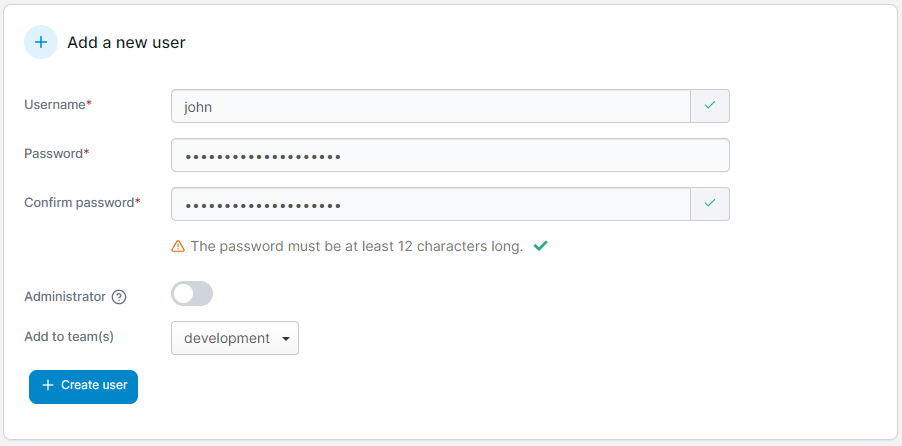
For further details on configuring teams, see the Portainer documentation.
Automatic user provisioning
Portainer can provision users on first successful federated login rather than requiring you to invite each user by hand. For LDAP, that setting is AutoCreateUsers; for OAuth, the OAuth handler creates users at first login too.
Automatic provisioning gets you to a working state faster in large organizations, because you do not need to know every user's identity in advance; anyone in the right directory group with the right OAuth claim gets a Portainer account the first time they log in, and inherits whatever team membership their identity implies. Team assignments sync from LDAP groups on every login (failures there log a warning but do not block the login), so a user's teams (and therefore their roles) stay current with their directory reality.
For AD environments, AdminAutoPopulate is worth understanding. When it is on, the user's role gets re-evaluated on every login based on their membership in the AD administrator group; membership grants admin, and removing them from that group demotes them next login. This is the intended way to manage administrator turnover; it also means that if the AD admin group is accidentally cleared, everyone who logged in during the outage got demoted, and re-adding them to the group is not enough on its own; they have to log in again for the promotion to re-apply.
For further details on automatic user provisioning via OAuth, see the Portainer documentation.
Feature flags
Portainer exposes a small set of feature flags through the --feat flag, which is repeatable at startup. Turning these on and off is a boot-time decision; changing them means restarting the server.
- hsts: emit HTTP Strict Transport Security headers.
- csp: emit a Content Security Policy header for the main UI. The add-on gateway has a stricter dedicated CSP that applies whether or not you set this flag.
- disable-roles-sync: turn off automatic RBAC role definition sync during migration. Only relevant when you want to freeze RBAC across upgrades; the default (roles sync on) is right for almost every deployment.
- disable-external-requests: block Portainer from making external HTTP requests it does not strictly need. Used in air-gapped or restricted-egress environments; turning this on will disable check-ins and remote features.
- async-policies: enable policy distribution to async edge environments through the command queue. If you have async fleet and want policies to reach it, turn this on.
- addons: switch the add-on catalog to the develop channel, which exposes unreleased add-ons. Do not turn this on in production unless a Portainer engineer has asked you to; the release catalog is what your users should see.
- observability-oneuptime: gate parts of the OneUptime integration surface. If you plan to use OneUptime for logs and metrics, turn this on; if not, leave it off.
These are small decisions individually, but they compound. For a typical production install, hsts and csp are on if you are terminating TLS at Portainer, async-policies is on if you have async fleet, and everything else is at defaults.
What is next
Your Management Server is now configured for enterprise use: proper TLS, backup targets, federated authentication, teams before users, and the feature flags you actually need. Module 6 is where you start onboarding environments and Portainer stops being an empty console.
Next: Module 6 · Onboard environments